

NovaStar CMS260 software should be chosen by task: use a compatible NovaLCT installation for LED screen configuration, and confirm the supported V-Can workflow when you need computer-based processor control. Identify the controller, firmware, receiving cards, and control connection before installing anything. An application that opens successfully has not yet proved that it can configure your particular system.
This guide is for AV integrators preparing to commission or replace a CMS260 in an existing LED wall. It separates software selection from cabling, screen mapping, and source testing, so you can prepare the right files before the equipment reaches the venue.
The recommendations below are based on published product and software documentation, rather than a hands-on test of your hardware. Exact menus and available functions depend on the connected device and software version. Treat the sequence as a commissioning checklist and use the matching manuals for individual operations.
1. NovaStar CMS260 software: choose by task
Start your NovaStar CMS260 software selection by writing down what the computer must do. Configuring receiving cards, arranging the displayed picture, and playing presentation content are different jobs. A vague request for “the LED software” can send an installer toward the wrong package, particularly when several NovaStar product families appear in the same download library.
NovaLCT is a Windows configuration tool. Its synchronous-system manual covers screen configuration, receiving-card parameters, screen connections, and maintenance functions, with availability determined by the connected hardware. The CMS260 specification identifies LCT as a control option. Together, these establish NovaLCT as the configuration starting point; they do not establish universal compatibility with every firmware and receiving-card combination.
V-Can is a processor-control application for supported equipment. Its manual warns that the interface and features change with the connected device. Therefore, a screenshot showing a feature on another controller is not evidence that the same function will appear on a CMS260. Request confirmation of the intended operation before promising it to the customer.
| Requested task | Starting point | What to confirm |
|---|---|---|
| Configure the LED wall and receiving cards | Compatible NovaLCT package on Windows | Controller firmware, receiver model, and cabinet configuration |
| Control supported processor functions from a computer | V-Can compatibility check | Device detection, connection method, and required controls |
| Play slides, videos, or a live camera feed | The external video source and its own application | Actual output format and the CMS260 input used |
| Schedule content on a separate media player | Software for that player’s exact model | Player compatibility and its connection to the display system |
| Change controller or receiver firmware | A model-specific update procedure | Approved package, reason for updating, and recovery plan |
Keep these distinctions in the NovaStar CMS260 software request you send to the supplier. For example, “configure replacement receiving cards and recall a presentation layout” is more useful than “send the latest software.” It gives the supplier two specific operations to verify.
2. Prepare the versions and files before connecting
A reliable NovaStar CMS260 software setup begins with a record of the working system. For an existing wall, photograph the controller label, rear connections, and cabinet wiring labels. Record the computer’s operating system, installed application versions, controller firmware, and receiving-card identification where available.
01. Keep software, firmware, and configuration separate
For the role of project and cabinet files, see our NCP file and LED configuration guide. The installer puts an application on the computer. Firmware runs on the controller or receiving card. Configuration files describe aspects of the screen and its setup. Keep these items in separate folders with clear names, so a technician cannot mistake a firmware file for a cabinet configuration or assume that installing an application also updates the hardware.
Before changing NovaStar CMS260 software, retain the currently working package and the approved screen files. Name the folder by project and date, then add a brief record explaining which equipment it belongs to. A file called “final” is difficult to trust when several installations use similar cabinets.
The manufacturer’s catalog reviewed on November 6, 2026 lists NovaLCT V5.9.2 and V-Can V3.8.0. These are reference versions, not a recommendation to update every installation. Compare release notes and device requirements with the actual unit. EagerLED’s software and manual library also separates current packages from older compatibility downloads.
02. Ask for files that identify the actual cabinet
Request the receiving-card configuration supplied for the installed modules, along with a drawing showing cabinet positions and cable order. Match the filename to the receiver and cabinet identification. Two cabinets that share external dimensions need not share the same electronics or parameters.
If the existing configuration cannot be recovered, record that gap before scheduling the work. Ask the cabinet supplier for the correct files and an approved commissioning procedure. A generic internet download cannot establish that the module driver, scan arrangement, and receiver configuration match the wall in front of you.
Prepare NovaStar CMS260 software on the actual commissioning laptop before traveling. Check that you can open the required documentation and locate the installers without relying on venue internet access. Leave time for IT approval if the laptop is managed by the customer.
3. Separate the control path from video and LED output
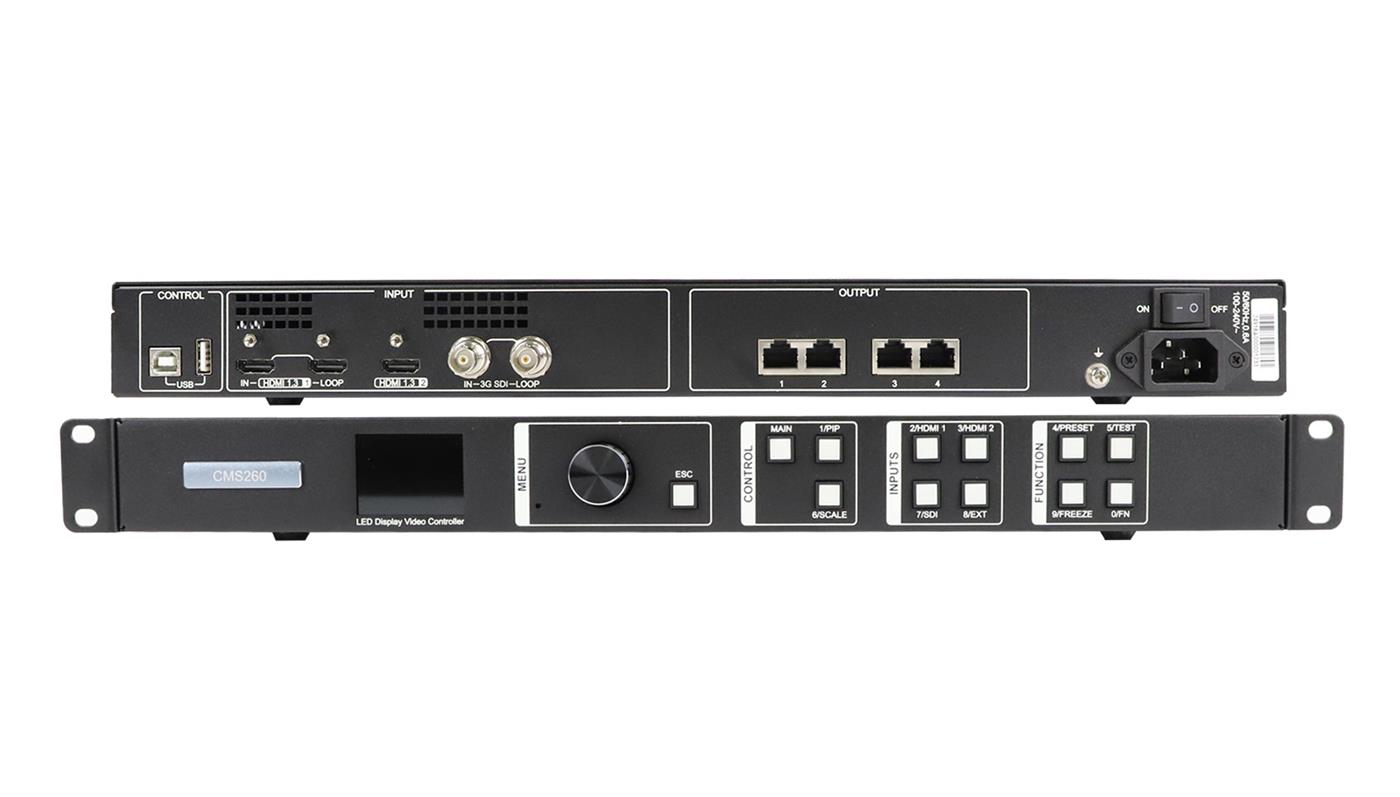
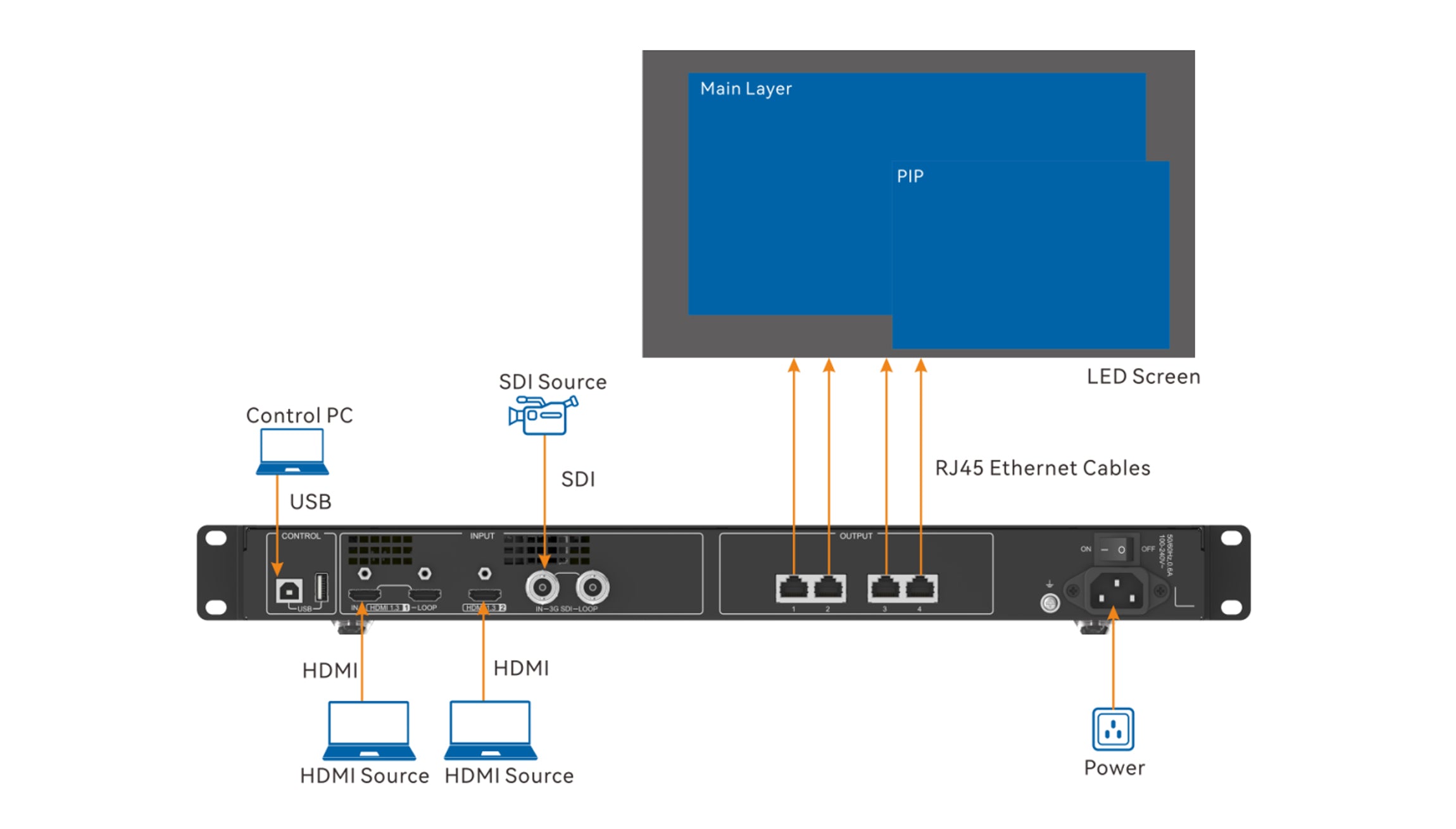
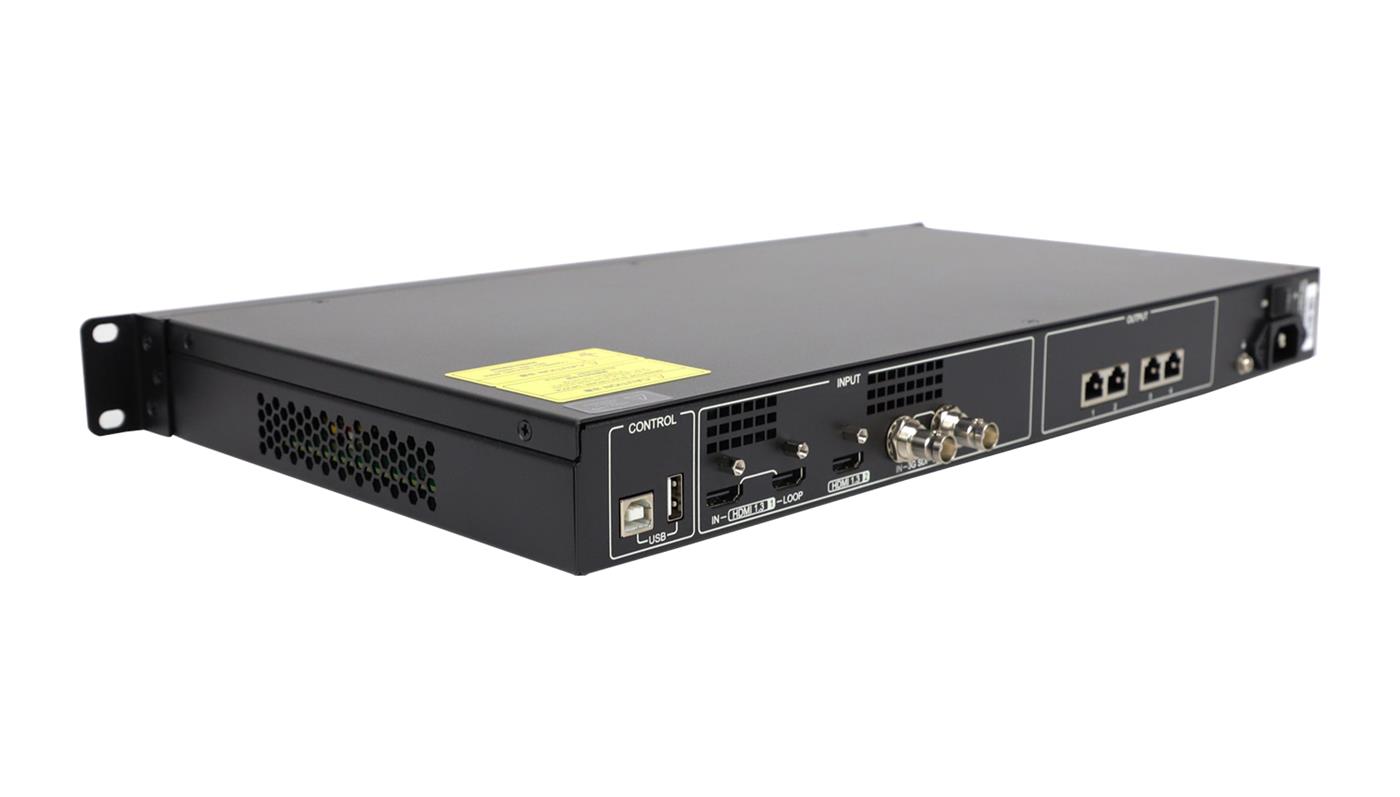
The CMS260 specification assigns USB Type-B to the control computer, USB Type-A to device cascading, and the four Gigabit Ethernet connectors to LED output. HDMI and SDI carry source video. Use the connector labels and the exact device documentation to distinguish these paths; a connector’s familiar shape does not establish its role.
When preparing NovaStar CMS260 software, draw three separate routes: laptop to controller for control, source to controller for video, and controller to receiving cards for LED data. This makes it easier to determine which connection is involved when the wall has a picture but the application cannot detect the device, or vice versa.
01. Verify communication before changing screen settings
Use a known working data cable and the documented control port. Check device identification in the application before sending any configuration. If several controllers are attached, match the selected device to the intended wall. Keep other workstations from making simultaneous changes during commissioning.
A successful NovaStar CMS260 software connection is a checkpoint, not the end of commissioning. It establishes that the computer can communicate through that path. Continue with the receiving-card map and video-source checks rather than assuming the entire display system has been validated.
02. Plan the Mac workflow explicitly
The V-Can V3.8.0 manual states that, on macOS, the CMS260 does not support a direct connection to the computer’s Ethernet port. The same manual lists macOS support for V-Can generally. These statements concern different things: application platform support does not guarantee every device connection method.
For a Mac-based project, ask the supplier to demonstrate the exact computer, operating system, application version, and connection route. Keep a compatible Windows configuration laptop in the plan when NovaLCT is required. Do not promise that changing an adapter will resolve an unsupported workflow.
4. Commission the wall in a controlled sequence
Use NovaStar CMS260 software only after the cabinet plan, source list, and working files are ready. The sequence below is a suggested acceptance process. It helps isolate changes and produce a useful handover record without pretending that one button sequence fits every hardware revision.
01. Establish a baseline
Record the wall’s behavior before making changes. If it already works, photograph an identifiable test image and note the selected source, picture position, and any existing defects. Agree on a maintenance window and the person who can authorize returning the system to service.
Save available configuration information and retain a copy outside the commissioning laptop. Check that the files can be located and opened with the intended tools. A backup that nobody can identify is unlikely to help a technician during a short recovery window.
02. Confirm the receiver map
Follow the matching NovaLCT manual and supplier-approved cabinet settings. Its documented workflow includes loading configuration, setting screen connections, and saving to hardware. Check the software’s selected communication target before each write. Keep the cable drawing beside the screen map so that logical placement can be compared with physical routing.
For NovaStar CMS260 software acceptance, use a test image with distinct corner labels, cabinet boundaries, and a visible orientation mark. This is a suggested test pattern, not a supplied manufacturer file. Check every section of the wall from the intended viewing side, and photograph mismatches before changing the map.
03. Test the real source and picture layout
Connect the actual presentation laptop, playback device, or switcher that will be used at the venue. Record its output settings and check an image with fine text, a border, circles, and contrasting colors. A photograph filling the screen can conceal cropping or stretching that becomes obvious on a presentation slide.
Include every converter and cable that will remain in the installation. If an adapter is changed after testing, treat the affected signal path as unverified until it is tested again. Keep source settings separate from receiver mapping: adjusting one to hide an error in the other creates a difficult maintenance problem.
The NovaStar CMS260 software record should identify both the intended layout and the result. For example, record whether the full border is visible and whether a circle remains round. These are clearer acceptance statements than “picture looks fine,” especially when another technician takes over later.
04. Verify persistence and operator control
After saving the required settings, perform a planned restart and confirm that the approved picture and mapping return. Reopen the relevant application and check the state again. Document which settings were saved to hardware and which files remain on the computer.
Finish by asking the designated operator to perform the normal startup and source-selection routine. If the operator cannot recover the expected picture from the written instructions, refine the handover while the commissioning technician is still available.
5. Diagnose the symptom before reinstalling
Reinstalling NovaStar CMS260 software is not a useful first response to every display problem. Identify whether the failure concerns computer communication, source video, cabinet mapping, or settings retained after a restart. Then change one variable and record the outcome.
| Observed symptom | Check first | Evidence to keep |
|---|---|---|
| The application does not detect the controller | Control connector, data cable, driver status, and selected device | Connection photo, application version, and exact error text |
| The controller is detected, but source video is absent | Selected input, source output, and intervening adapters | Source format and controller input status |
| The picture is split into misplaced cabinet sections | Physical cable order against the approved screen map | Marked cabinet drawing and labeled test-image photo |
| The picture is cropped or stretched | Source aspect ratio and intended picture sizing | Full-border test image and source settings |
| The wall works until equipment restarts | Which settings were saved and the startup source state | Before-and-after photos and restart sequence |
| A documented software control is missing | Whether that function applies to the connected model and version | Device identity, firmware, and the relevant manual section |
This NovaStar CMS260 software troubleshooting table is a diagnostic starting point, not a claim that each symptom has only one cause. If a test does not support the suspected cause, restore the previous state and investigate the next part of the signal path. Avoid combining a driver change, firmware update, and new screen map in one troubleshooting attempt.
For a NovaStar CMS260 software support request, send the exact error and describe what still works. “HDMI video displays correctly, but the control application detects no device” gives support a narrower problem than “the controller is broken.” Include a simple connection drawing instead of asking the technician to infer the cable route from several close-up photographs.
Firmware changes belong in a separate decision. First identify a documented reason for the update, confirm the exact hardware target, and obtain the recovery procedure. A similar model name or chassis photograph is insufficient evidence that a firmware package is appropriate.
6. Make the setup repeatable for the next technician
A finished NovaStar CMS260 software handover should allow another authorized technician to identify the system, locate the approved files, and reproduce the normal operating state. Keep a concise equipment inventory, software versions, cabinet map, source settings, and acceptance photos together.
Separate the operator’s instructions from the integrator’s configuration record. Operators usually need startup, source selection, approved layouts, and an escalation contact. The technical record needs file versions, connection details, and the scope of the completed tests. Giving everyone an unstructured folder of installers and screenshots makes both tasks harder.
Use a short change log for each NovaStar CMS260 software service visit. Record the symptom, the single change made, the observed result, and whether the change was retained or reversed. Attach the corresponding configuration filename. This lets the next technician distinguish an approved setting from an unsuccessful experiment without reconstructing the entire visit from memory.
For example, a hypothetical handover might record that the wall was tested with the customer’s presentation computer but the camera feed was unavailable. Mark the camera path as awaiting acceptance and name the person responsible for completing it. Do the same for any untested backup arrangement or replacement laptop. A clearly recorded test boundary is more useful than a general sign-off that implies every possible input and operating condition has been checked.
If you are still comparing hardware, our CMS130 versus CMS260 comparison covers capacity and input differences. When ordering a controller for an existing installation, include the receiving-card model and cabinet configuration in the inquiry. Review the CMS260 product specification and connection information against that record. If receiving hardware is also changing, identify the exact LED receiving cards in the proposed system.
Ask for written confirmation of the NovaStar CMS260 software combination and the support scope. State whether you need basic device detection, receiver configuration, source-layout control, or help migrating an existing wall. These are distinct deliverables and should appear separately in the commissioning plan.
7. Frequently asked questions
01. Can I prepare the software without having the controller?
You can organize installers, read the manuals, and prepare the project record before delivery. NovaLCT also documents a demonstration mode for learning its interface. Offline preparation does not prove detection, receiver compatibility, or successful output on the delivered hardware; those require a connected-system test.
02. Does a USB socket mean the CMS260 can play videos from a flash drive?
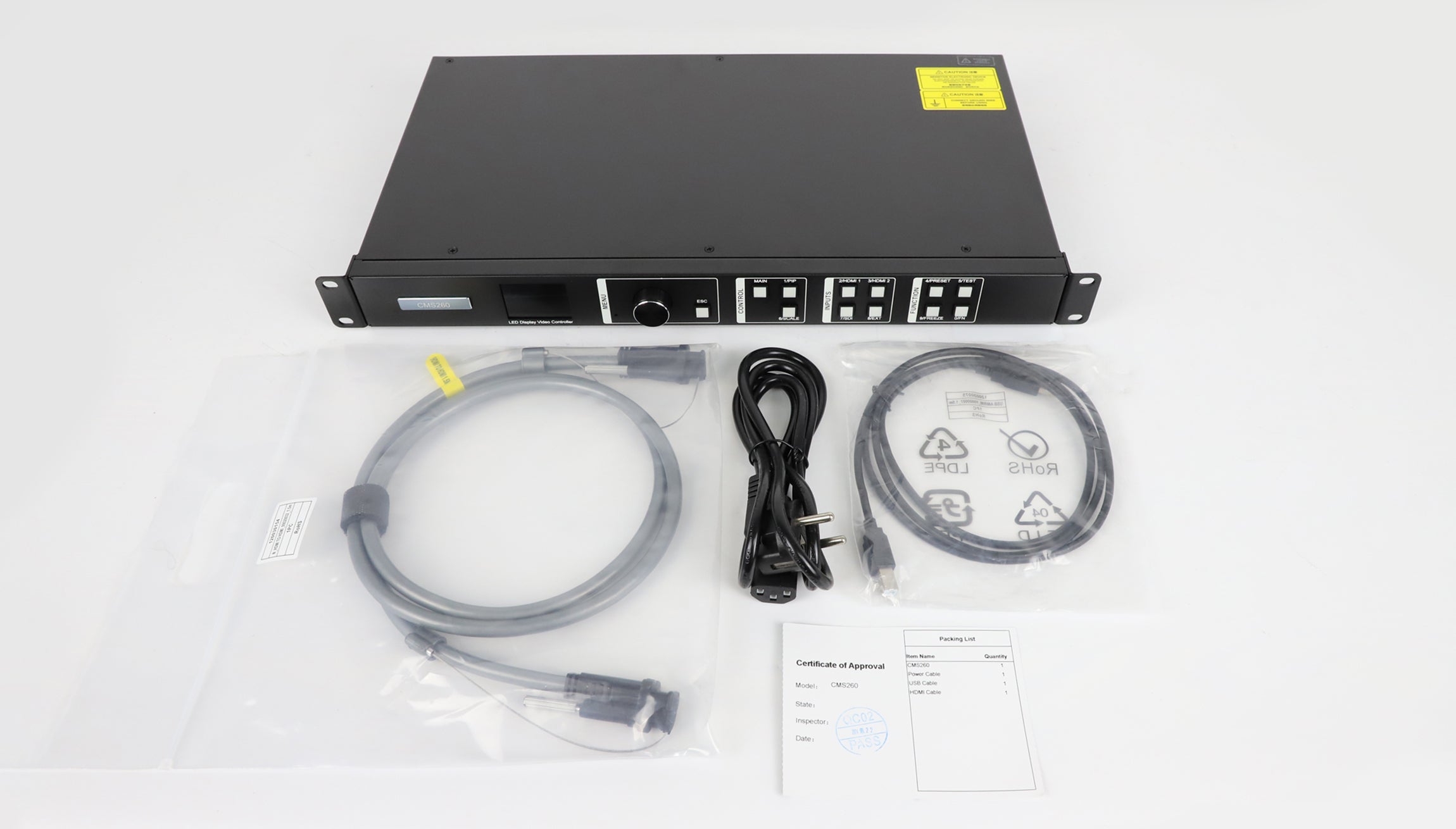
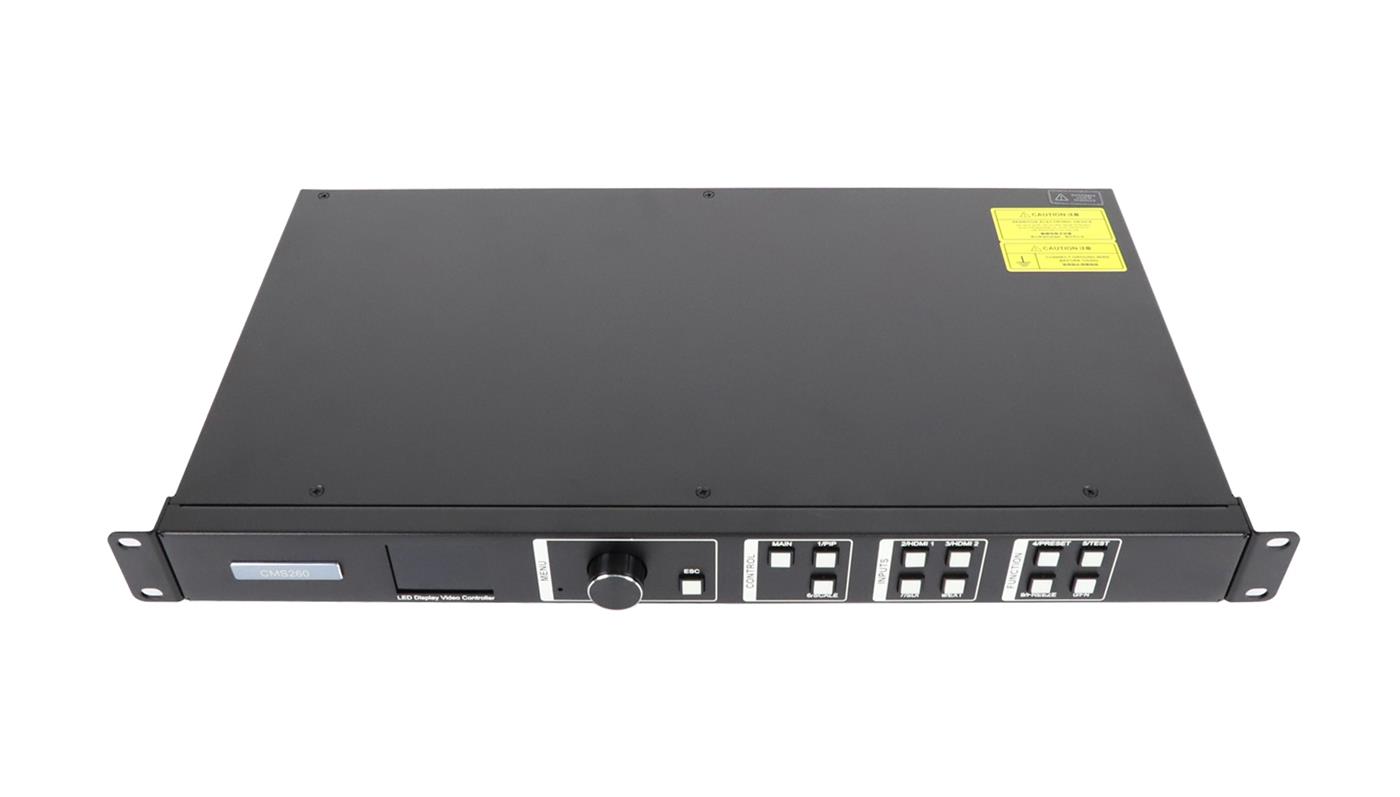
No. The published CMS260 specification assigns USB Type-B to computer control and cascading input, and USB Type-A to cascading output. It does not describe those connectors as flash-drive media playback inputs. Specify an appropriate external playback source when the project needs stored video content.
03. Can I reuse another project’s cabinet configuration?
Only after confirming that it matches the actual receiver, module electronics, and cabinet arrangement. A matching screen size is insufficient. Ask the cabinet supplier to identify the correct configuration rather than sending an unverified file to a working wall.
04. Must the control laptop stay connected during normal use?
Define that requirement from the operating plan. The CMS260 provides front-panel controls, but your installation may rely on computer control or on the same laptop as its video source. Test removal of the control connection separately from removal of the video source during the agreed acceptance procedure.
05. Is the NovaStar CMS260 software version the same as its firmware version?
No. Application and device firmware versions identify different components. Record both, along with the receiving-card firmware where relevant. A supplier should confirm the combination; matching or higher version numbers alone do not prove compatibility.
8. Get a software and configuration check before commissioning
Send the controller label, firmware information, computer operating system, receiving-card model, cabinet map, and intended source list through the EagerLED configuration inquiry page. Explain whether the job is a new installation, a replacement, or a specific fault.
Ask for the compatible NovaStar CMS260 software package, the matching documentation, and a clear acceptance scope. With those items agreed, the commissioning visit can focus on proving the real system and leaving the next operator with a repeatable setup.