

When you power on your LED screen, hoping to see a bright, vivid screen. What happens? Nothing but an LED black screen staring back at you. That is frustrating, especially during a vital event.
You may end up biting your budget when you have to call a technician each time to fix it. The cost to fix black LED screen may be up to $150-$200+ per time. Honestly, in many cases, the problem is something you can locate and even fix by yourself without always calling a technician.
Rather than blindly spending money, this blog will break down the 7 most common reasons why an LED screen turns black, exactly what you can do yourself to diagnose problems, and how to fix and avoid them.
1.Learn About LED Screen System Structure
2.How Does An LED Receiving Card Help Diagnose Issues?
3.Why Your Full LED Wall Went Black?
4.How to Fix Screen Full Black?
5.Why Are Partial LED Displays Not Working?
6.How Can I Fix Partial LED Black Screens?
7.Tips to Prevent Black Screen LED?
8.FAQs about Blank LED Screen
9.Conclusion
1. Learn About LED Screen System Structure
It’s important to understand what’s going on behind the scenes before attempting to fix an LED black screen. Think of LED screens as a team where each member has a specific job, and when one member is not working, the entire team becomes dysfunctional. So, who is who?
a. LED Modules: They consist of hundreds or even thousands of tiny LEDs that light up to display images and videos. The key components of LED modules include LED Beads, IC Drivers, and PCB Boards.
b. LED Cabinet: It is the heavy-duty metal skeleton that locks LED modules, power supply, control systems, and cables. The LED cabinet is like a shelf to support all components.
c. Control System: The control system is the ‘brain’ of the LED display, which controls the content on the screen. There are 3 main components:
- Sending Card: It takes videos or pictures from your computer and splits them into pieces so your LED screen can handle them.
- Receiving Card: It tells each part of the screen (modules) what to show, turning data into light.
- Control Software: It lets you change what’s on the LED screen (videos/text/colors) from your phone or laptop.
d. Power Supply: The power supply provides stable low-voltage DC power to the LED module, which is essential to keep the brightness and color accuracy of the LED display.
e. Power and Data Cables: These are the messengers. The juice is on the power cables and the instructions are on the data cables. It means,that when a cable is loose or sabotaged, your LED screen might turn black.
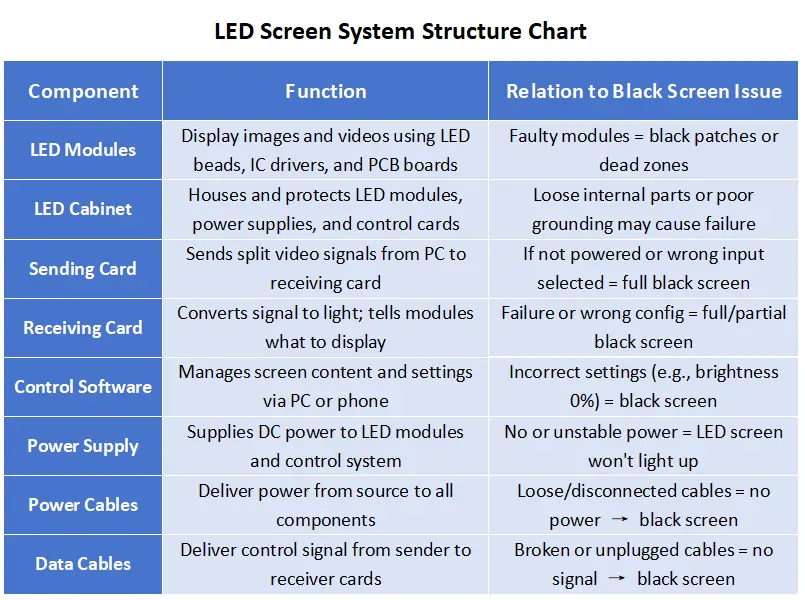
Understanding this structure makes it easier to debug the LED black screen. Simply put, when you know who is responsible for what, finding the troublemaker is more simple.
2. How Does An LED Receiving Card Help Diagnose Issues?
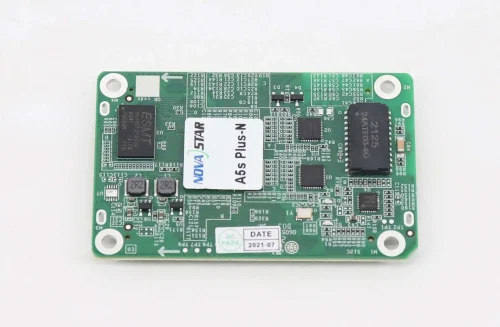
Supposing the LED receiving card is the middle manager of your LED screen. If the card suddenly goes silent, you LED screen might not display. It is a useful built-in diagnostic tool to tell you the real-time conditions of LED video walls.
The LED receiving card comes with tiny indicator lights. If you know how to read its signals, you can get more than you’d think…….Here we use the Latest Novastar Receiving Card(A5s Plus) as an example to analyze what its indicator light represents.
2.1 Red Indicator Light(Power):
Solid Red: When the red light is solid or flashing rapidly, it denotes that the receiving card has power and is working normally. It is a good sign!
No Red Light: There is no current reaching the card. It is possibly unplugged, the power supply is off, or something is fried.
2.2 Green Indicator Light:
(1) Flash Per Second: All is right. The receiving card is online and receiving a signal.
(2) 3 Quick Blinks + Pause: The card is communicating with the controller, but with no video input. Perhaps your HDMI or DVI input is offline or unplugged.
(3) Quick Flashing(about 7 times per second): It is in boot mode because of a failed firmware upgrade. You may have to refresh it with NovaLCT.
(4) Flash Every 5 Seconds: The card is waiting but not receiving any data. Just as you wait in anticipation of a response to your text message. You should check your Ethernet connection.
(5) Solid Green with No Red Light: This essentially never occurs, yet when it does, it will possibly mean the card is stuck or half-powered. Check wiring and power output.
Note: What indicator light denotes may vary from different manufacturers and models. Concrete information can be offered by LED screen suppliers.
The indicator light can tell you if your issue is related to the signal, power, controller, or even the video source. So when your LED screen are not displaying, you can firstly diagnose the problem by the indicator light without needing expensive tech support or fancy tools.
3. Why Your Full LED Wall Went Black?
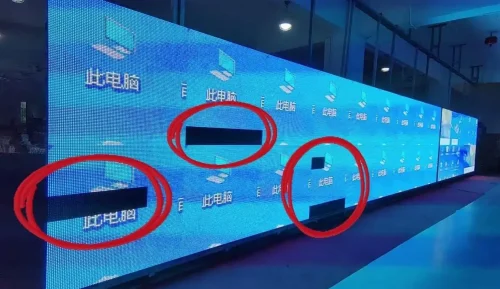
The LED black screen can be divided into a full screen black and a partial screen blackout. Your LED screen becomes completely black and you can’t see anything on the screen. Why is your full LED screen black? Let’s explore the key reasons.
3.1 Screen Power
If the LED screen is power-off or doesn’t have enough power supply, the LED black screen will occur. You should check whether the power cable is loose, the switch is turned off, or a fuse has blown.
3.2 Bad LED Sending Card
There are three reasons that caused LED black screens:
- The sending card is not working (powered on).
- Select the wrong input, check the HDMI/DVI/DisplayPort input.
- The input source interface has a fault or damage.
3.3 Broken Ethernet Cable
The sending card communicates with your screen through Ethernet cables. When they are not connected, broken or in the incorrect port, the black LED screen will happen.
3.4 Receiving Cards Errors
Incorrect configuration files and outdated firmware lead to blank LED screen problems. You also can estimate the LED screen condition through the indicator lights we talked about above.
3.5 Wrong Brightness Settings
I know, is hard to believe, but sometimes the screen can be turned on… it is just set to 0 brightness or put the control system to manual screen blackout (such as NovaLCT or VMP).
3.6 Incorrect Video Source
An LED black screen is caused by a malfunctioning media player, computer, or controller, or being on the incorrect input. Ensure that the video source is powered up, plugged in correctly and has the correct resolution and output port.
3.7 Overheating or Overvoltage
High temperature, bad ventilation, or fluctuating voltage may trigger the built-in protection mechanisms to make the screen not work to avoid burning out the panels.
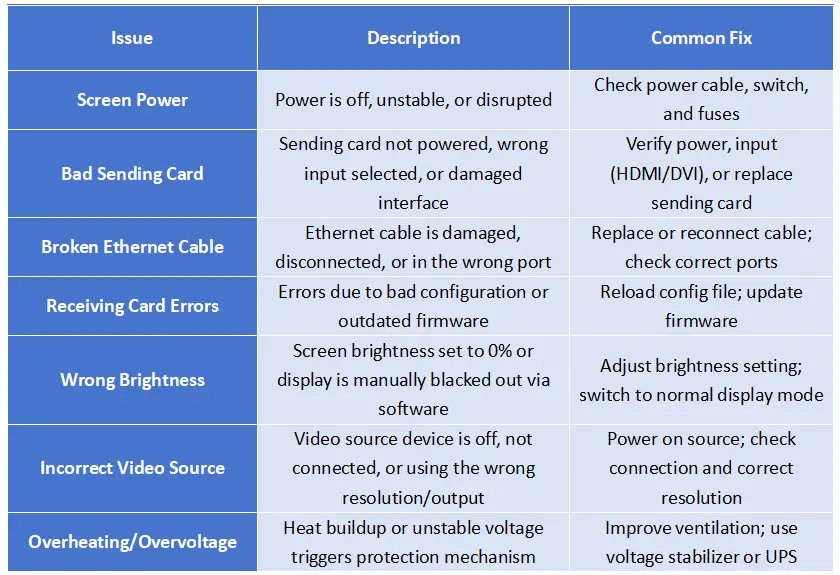
So when your full LED screen is not displaying anything, you can check the power, cable connection, sending card, and receiving card step-by-step. Nine out of ten, it is something that can be quickly fixed without the need for technicians.
4. How to Fix Screen Full Black?
If you have diagnosed the problems, congratulation, you’re one step closer to success. Here we will teach you troubleshoot the problem of full LED black screen in a simple way.
1. Check the Power
- Ensure your main power switch is onand the screen has adequate power.
- See whether the power cables have either loose ends.
2. Change Sending Card
- Please switch on the sending card.
- Please choose the related media source like HDMI or DVI.
- Change a different interface or replacethe sending card.
3. Inspect Your Ethernet Cables
- Search bent connectors, loose plugs or broken pins.
- Replace with a good Ethernet cable.
- Make sure the cable connects the sending card to the first receiving card in the chain – not the middle, not the last.
4. Check the Receiving Cards
- Reload the right configuration files
- Update the firmware version
- Take a look at the status of indicator lights
5. Reset the Brightness
- Please turn the brightness up, and the usual value is 50%.
- You should adjust the LED screen control to normal mode.
6. Change the Video Source
- Ensure that your media player, PC, or controller is switched on and is sending video.
- Verify the compatibility of video sources.
- Make sure HDMI, DVI, or whatever you use isloose or dead.
- Check the video source is fineand working normally.
7. Keep Ventilation and Stable Voltage
- Install cooling fans or other ventilation systems to avoid overheating
- Assemble voltage stabilizers orsurge protectors to protect electrical punches.
5. Why Are Partial LED Displays Not Working?
Some of the reasons for partial LED black screen are the same as full LED black display. The partial LED black screen problem may be caused by cable disconnection, poor power supplies, or damaged LED modules.
So, what could be wrong with your half-LED display? Let us route out the reasons why it may be misbehaving, and how to identify the cause of LED black screens?
5.1 Sending Card Output Port Level
This is similar to the brain stem of your LED display. When the signal is not conveyed out of the sending card adequately, the signal of one part of the screen will not light up entirely.
Reasons: Open output port, damaged or loosened Ethernet cable, no electricity in the initial cabinet.
Solution: Change the Ethernet cable, test another output port, and ensure that the cabinet is receiving stable power.
Detection Steps:
Step 1: Ensure that the first cabinet connected to the affected port has not lost power. Check the voltage at the power pin using a multimeter.
Step 2: Test the Ethernet cable between the sending card and the first cabinet. Seek damaged shielding, frayed wires, or loose connectors.
Step 3: Replace output cable with a cable in another port on the sending card (in case you have one). If the screen illuminates on the new connection, then your old port is probably toast.
Step 4: Connect the original cable output to another functional cabinet. In the event that such a cabinet has gone dark you have a cable issue.
5.2 LED Cabinet Level
Having determined that the sending card is not the problem, you can now look at the LED cabinet problem.
Reasons: Loss of power, bad Ethernet connection, configuration or firmware problems in the receiver card, or problems with the hub board.
Solution: Just replace the PSU, rewire the receiver card, update the firmware and install a new hub board.
Detection Steps:
Step 1: Unplug the power input and measure the power supply unit with a multimeter (typically 5V or 3.3V). Change it when it has no output, or is unstable.
Step 2: Pull the Ethernet cable between this cabinet and the previous one gently. If it is wiggly or loose, please reset or replace it.
Step 3: Check the cabinet and locate the receiving card:
- Load the configuration file again through the LED software (NovaLCT or similar).You should recreate the config file from the working cabinets if it fails.
- Make sure that the firmware version in the receiving card is updated through the tool on the manufacturer side.
- In case the LED modules fail to respond, replace the known receiver card.
Step 4: Inspect the hub board connected to the receiving card. Look for burnt traces or swollen capacitors. If unsure, swap it with one from another cabinet.
5.3 LED Module Level
When the cabinet is powered and the receiver is on, then the LED black screen problem might be at the LED module level. This is tantamount to repairing the dashboard of a car where all the lights are blinking without any cause.
Reason: Loose power lines, worn-out flat cables, or hub board connector failure.
Solution: Secure or replace power and data cables, and use a different hub board connector or board entirely.
Detection Steps:
Step 1: Open the cabinet and inspect the power cable into the LED modules. When it is loose or burned out, you will smell or see damage. Exchange the cable, or the whole power unit.
Step 2: Inspect the flat data cables connecting the receiver or hub board to the modules. These are fine ribbon-like cables which may loosen. Carefully unplug and reseat them, or replace them with a spare.
Step 3: The hub board connectors should be tested by re-routing to a different output on the same hub board. If the alternating connector is okay, then the other would be bad. Otherwise, consider replacing the hub board.
Therefore, how to deal with partial LED black screen quickly? Don’t worry—we’ve got you covered. In the next section, we will dig into these possible problems and make your partial LED black screen asleep.
6. How Can I Fix Partial LED Black Screens?
Are you curious about how to solve LED black screen issues quickly? Here is a practical and easy-to-follow partial LED display blackout repair guide, categorized by the three main levels: sending card output port, cabinet, and LED module.
6.1 Sending Card Output Port Issues
- Test Ethernet Cable: Wiggle both ends-easy to go loose or damaged cables. Change the cable when you see fraying or when the connection is loose.
- Check Sending Card Output Port: Move the ethernet cable with a different output on the same card. Provided it does, the original port must be erroneous. Replace the sending card or use a working port.
- Inspect Power to the First Cabinet: Ensure that the output port in the cabinet is turned on. If it is not lighting up at all, test the power supply or power cable.
6.2 LED Cabinet Problems
- Test the Power Supply Unit:Open the cabinet, check PSU output with a multimeter. It should be replaced when there is no voltage or abnormal output.
- Recheck Ethernet Connection: Disconnect and reconnect the Ethernet plug. Not displaying? Replace with a new cable.
- Diagnose the Receiving Card:
- Reload the correct configuration file.
- Update firmware from the official Novastar (or relevant) site.
- Replace the receiving card with a working one to test for hardware failure.
- Inspect or Replace the Hub Board: Look for damaged connectors or signs of short-circuiting. Replace if anything looks off.
6.3 LED Module Troubles
- Check Module Power Cables: Confirm that the modules are getting power from the PSU. Install new cables when cables are loose or burnt.
- Test the Flat Data Cables: Reseat the data ribbon cables between the receiving card and modules. Swap them if they look worn or bent.
- Test Hub Board Connectors: Switch module outputs to another port on the hub board. If that works, the original connector is faulty—replace the hub board.
This step-by-step approach helps repair the problem of partial LED black screens and gets your screen back up, without stress or guesswork, bringing your audiences a stunning and vivid visual experience.
7. Tips to Prevent Black Screen LED
Thinking of suddenly having an LED black screen during a normal event, you will be very frightened, especially when your boss, client or audience is watching.
In addition, a black screen may spur audience panic, but have no fear! We will give you some tips to avoid LED black screen, bringing an immersive and unforgettable visual feast to your audiences.
7.1 What’s the Big Deal with a ``Black Display Screen``?
Imagine your LED screen suddenly going black—like it fainted or had a tech meltdown. It’s more than just frustrating and causes real problems:
Show Stopper: A sudden LED black screen can turn a memorable event into a major embarrassment such as presentations freeze, concerts with awkward silence, and sports events missing the wonderful moment.
Money Burner: Every minute your screen stays dark is money wasted—advertising revenue vanishes, ticket refunds pile up, and frustrated clients start questioning your reliability, turning a technical glitch into a financial headache.
Reputation Wrecker: When your event occurs an LED screen blackout, it will make you look unprofessional and disappoint your audiences while questioning your tech reliability.
Hardware Hazard: Occasionally, an LED black screen is a sign of more serious problems that could ruin costly modules or power supplies if not found in time.
7.2 Your Black Display Screen Battle Plan: 7 Useful Tips
(1). Firm Connections: No Wiggles Allowed
Why it Works: One bad cable connection between wall panels may cause full LED black screen. The reasons are that they can be loosened by vibration or a person accidentally tripping over a cable.
What to Do:
- Physically ensure that all data cables areseated and locked (ethernet-style cables). Are pins crooked?
- Slightly tug on connectors to check whether they are loose.
- Fix cables along the frame toavoid accidental pulls.
(2). Stable Power Supply
Why it Works: Overloads are avoided by dedicated circuits. Surge protectors/UPS protect against lightning strikes or grid glitches that have the potential to take your screen down immediately or even fry components.
What to Do:
- Utilize a voltage stabilizer or UPS(uninterruptible power supply) to protect and control your system.
- Ensure that your circuit breakersand power distribution units (PDU) are not overloaded.
- Don’t connectseveral devices on a single power supply. Your LED screen is not a Christmas tree.
(3). Keep it Cool
Why it Works: Power supplies and LED modules produce so much heat. To prevent a fire or damage, overheating causes automatic shutdowns (thermal protection)and LED black screen.
What to Do:
- Apply fans or heat sinks on big LED displays, particularly when they are hung near walls.
- Ventilation ports should be checked and cleaned every month.
- Measure your inside temperature using your control software and strive to maintain it around 55°C (131°F) or lower.
(4). Software or Firmware Update
Why it Works: Updates often fix bugs that can cause crashes or LED black screens. But if you make a bad update just a few minutes before the show starts, it can be a big deal. Testing is critical.
What to Do:
- Check your LED processor/video controller and sender/receiving card manufacturer websites regularly to see if they have a newer version of firmware/software.
- Upgrade only when it fixes a bug you may run into or has features you need.
- ALWAYS avoid updating firmware just before an important show.
- Update your tests offline comprehensively.
(5). Strong Signal Chain
Why it Works: One mismatched setting or wrong cable can destroy the entire chain. Sometimes processors get lost and must be rebooted.
What to Do:
- Map your signal path: Source (PC/Media Player) -> Cables -> Processor/Controller -> Cables -> LED Wall.
- Check the links one by one. Replace suspicious cables of the HDMI/DP/SDI type first (They fail constantly).
- Make sure that sources are providing the absolute resolution and refresh rate.
- Cycle the power on the processor ifthe signal appears to be “stuck.”
(6). Routine Maintenance
Why it Works: Regular Maintenance and checkup can help you find out potential problems timely and prevent serious issues from coming out.
What to Do:
- Set a calendar reminder to regularly detect the whole LED screen.
- Ensurethat there are no dead pixels, power fluctuations, firmware bugs, and indications of moisture buildup.
- Screw all brackets and cabinets as loose panels can cause weak signals between modules.
(7). Train Your Staff
Why it Works: The majority of the horror stories about LED video walls start with a person pressing a wrong button or unplugging an incorrect cable.
What to Do:
- Have a simple training on how to turn on/off, upload material and signs of early warning.
- Make an LED black screen list and tape it to the back of the screen or control panel.
- Make any contact or manuals required in an emergency available to your team.
The majority of black display screens are avoidable. These seven tips are what you need to know to achieve the brightest, most consistent performance from your LED wall, with no dramas and surprises, just steady displays.
8. FAQs about Blank LED Screen
1. My LED display is dark, but it powers on—what’s causing this?
If your LED display turns dark but powers on, it’s likely a screen signal issue, a faulty LED panel, or a disconnected video input.
2. When should I contact professionals to fix the LED black screen?
You should contact professionals when you don’t find out problems according to diagnose guide, multiple components are fail, or you’re unsure about safely handling electrical repairs.
3. What’s the cost of fixing a black display screen?
It varies—simple cable replacements may cost little, but replacing control cards or power supplies could range from $50 to $500+, depending on the part.
4. Can bad weather cause my outdoor LED screen to go black?
Yes, extreme heat, moisture, or lightning can damage components or cause temporary failures if the screen isn’t properly weatherproofed.
5. What causes black screen on LCD?
A black screen on an LCD is usually caused by issues like a loose or damaged video cable, faulty backlight, or a failed power supply. In some cases, it could also be due to a malfunctioning display driver or mainboard. Checking the connections and testing with another screen can help pinpoint the problem.
6. Why can't LED show true black?
LED displays can’t show true black because standard LEDs emit some light even when displaying dark colors, leading to a glow or grayish-black. Unlike OLEDs, which turn off individual pixels completely, LEDs rely on backlighting or constant illumination. This limits their ability to achieve absolute black levels.
9. Conclusion
There is nothing more irritating than your LED screen turning black, particularly when you are halfway through your show. Relax, with you reading this post carefully, I believe you can diagnose and fix the LED display screen by yourself.
Still stuck with a black display screen? Contact our expert engineering team at EagerLED. We will help diagnose the issue fast and get your screen shinning again. Don’ t let a black screen to ruin your important moment!