

This guide focuses on how to actually use the Vunit 3000 in real LED display projects. From basic setup to signal configuration and system integration, everything here is based on practical operation. If you are choosing a processor, comparing a Novastar processor, or trying to get a LED video processor running quickly on site, this guide will walk you through the key steps that matter.
catalogue
1.What Is Vunit 3000 LED Video Processor and Its Key Features
2.Novastar processor Vunit 3000 Setup Guide Step by Step
3.Novastar Vunit 3000 Input and Output Configuration Explained
4.How to Work with Novastar System Using Novastar Vunit 3000
5.Best Applications for Novastar Vunit 3000 LED Video Processor
1.What Is Vunit 3000 LED Video Processor and Its Key Features
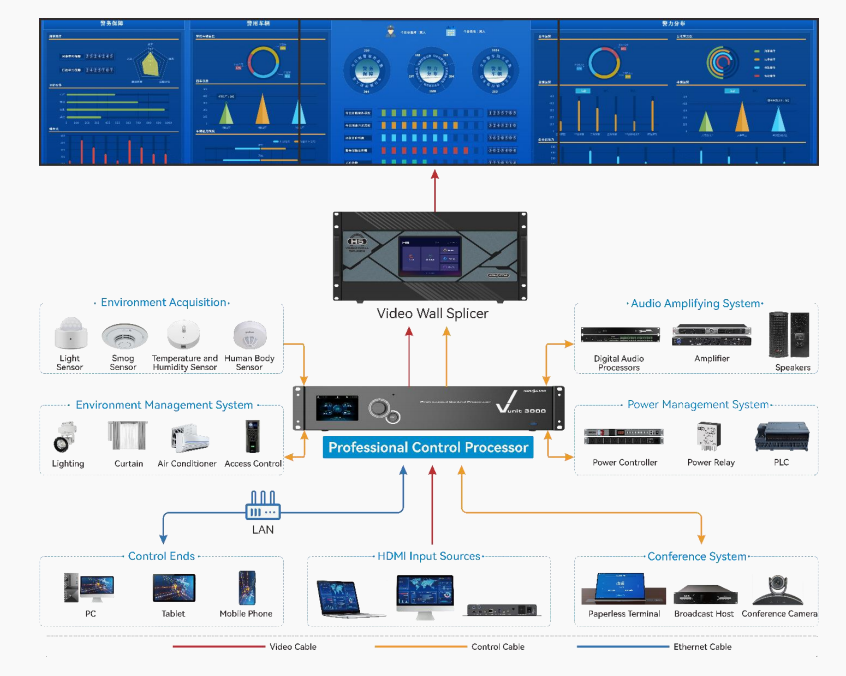
Novastar Vunit 3000 is a professional control processor from NovaStar that integrates programmable central control with video matrix switching in a single device. It is built for intelligent video conferencing, multimedia exhibitions, and command centers where reliable and flexible control is essential.
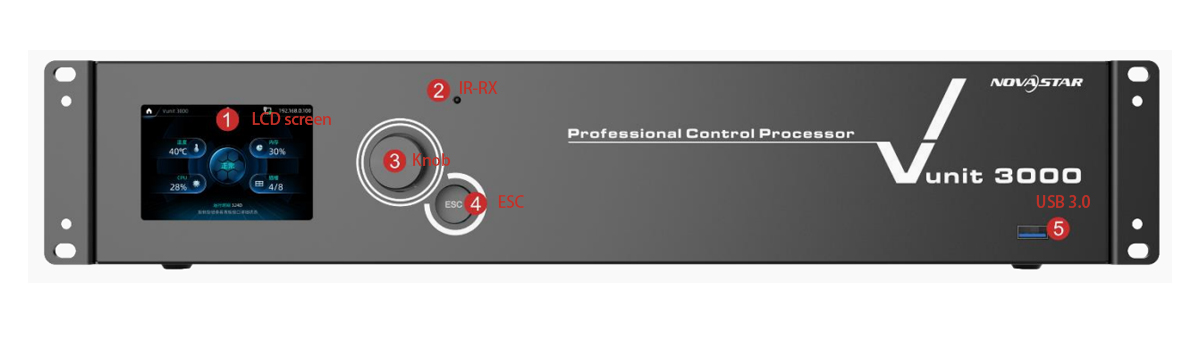
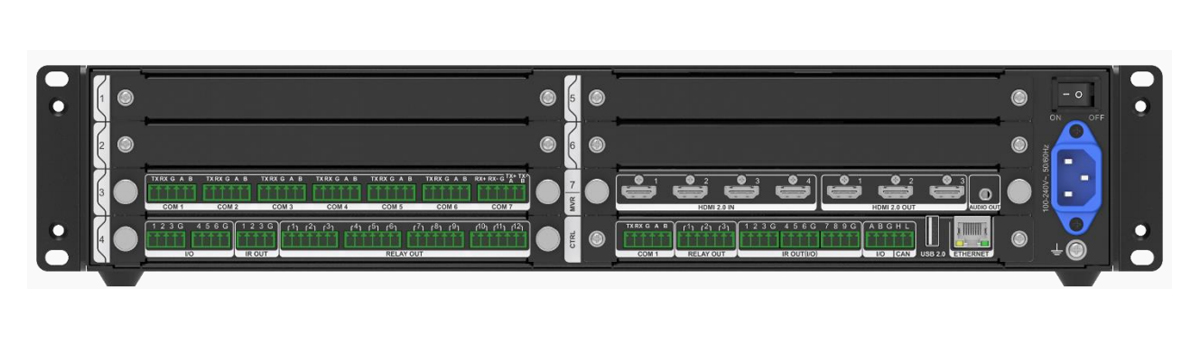
Novastar Vunit 3000 Key Features:
- 32-bit ARM Cortex Industrial-Grade CPU: Ensures high-speed processing and stability.
- Comprehensive Control Connectors: Programmable COM connectors supporting RS422/RS485/RS232/modbus protocols.Programmable I/O and relay connectors for executing various functions. IR learning and emission capabilities for remote device control.
- Video Matrix Functionality: Equipped with a video card that supports 4 HDMI inputs and 3 HDMI outputs, functioning as a small matrix.
- Independent Audio Output: Enhances user experience by allowing separate audio switching.
- Open Programmable System: Customizable UI design with intuitive controls.
- Fault-Tolerant Design: High anti-interference circuits ensure reliable operation.
| Feature | Description |
| CPU | 32-bit ARM Cortex industrial-grade |
| Serial Ports | RS232/RS422/RS485, modbus compatibility |
| Video Inputs/Outputs | 4x HDMI 2.0 inputs, 3x HDMI 2.0 outputs |
| Audio | Independent audio output |
| Infrared Control | Supports IR learning and command transmission |
2.Novastar processor Vunit 3000 Setup Guide Step by Step
Setting up the Novastar Vunit 3000 control processor involves hardware connection, network configuration, and basic parameter setup. Follow these steps to get your device ready for operation.
Step 1: Hardware Connections
- Connect video sources and displays to the HDMI 2.0 input and output ports on the video card.
- Wire controlled devices—such as projectors, screens, lighting, and sensors—to the COM, I/O, relay, and IR connectors on the rear panel.
- Ensure the Novastar Vunit 3000 LED video processor and your control PC are on the same network segment for remote management.
Step 2: Network Configuration via Front Panel
- Power on the device. The LCD screen shows the device status and default IP address (192.168.0.10).
- Use the knob to navigate: rotate to select, press to confirm, and press ESC to exit.
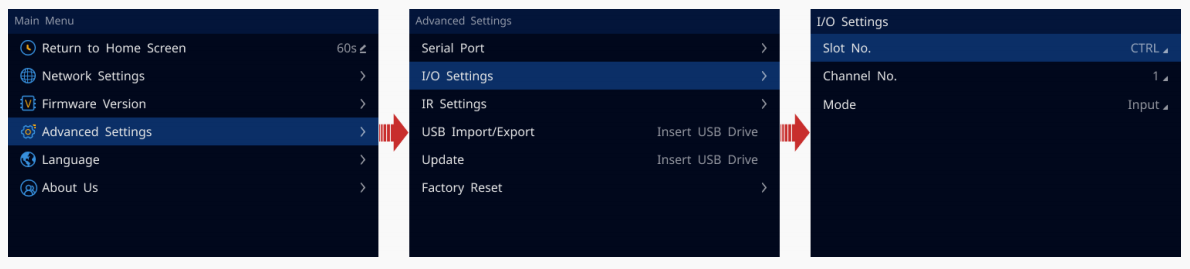
- To change the IP address, press the knob to enter the main menu, select Network Settings, set the IP address, subnet mask, and gateway, then select Apply to save.
Step 3: Device Discovery with BCTools
- Install BCTools on a Windows PC (Windows 7 or later).
- Launch the software, select the network card connected to your device, and click Start Scan. BCTools automatically discovers all Vunit 3000 units on the same network segment and displays them in the device list.
Step 4: Configure Basic Control Parameters
- In BCTools, go to the Central Control Configuration tab. Set serial port parameters (baud rate, data bits, parity) to match connected devices.
- Configure I/O modes: Input for sensors, Output‑High or Output‑Low for control signals.
- Use the IR Learning function under the IR tab to capture remote control commands—select the device type and press buttons on the remote when prompted.
- For video switching, go to the Matrix tab, select the video card slot, and set input-to-output relationships; audio can be routed independently.
3.Novastar Vunit 3000 Input and Output Configuration Explained
The Novastar processor Vunit 3000 excels at managing multiple inputs and outputs, making it ideal for complex LED video setups.
Input Configuration:
- HDMI Inputs: Supports resolutions up to 3840×2160@60Hz.
- Audio Input: Accompanied audio input is supported for each HDMI source.
- EDID Adjustment: Customize input resolutions and frame rates via the EDID settings page.
Output Configuration:
- HDMI Outputs: Mirror or extend content across three outputs.
- Independent Audio Output: Route audio independently from video sources.
- Matrix Switching: Configure one-to-one or one-to-many relationships between inputs and outputs.
4.How to Work with Novastar System Using Novastar Vunit 3000
Novastar Vunit 3000 control processor is configured and managed through NovaStar’s BCTools software, which provides a unified interface for device management, event automation, and system monitoring.
Centralized Control
- BCTools can discover all Vunit 3000 devices on the same network segment with one click.
- You can batch change IP addresses and device names across multiple units.
- All configuration—serial ports, I/O modes, IR learning, and matrix switching—is done within the same software.
Event Automation
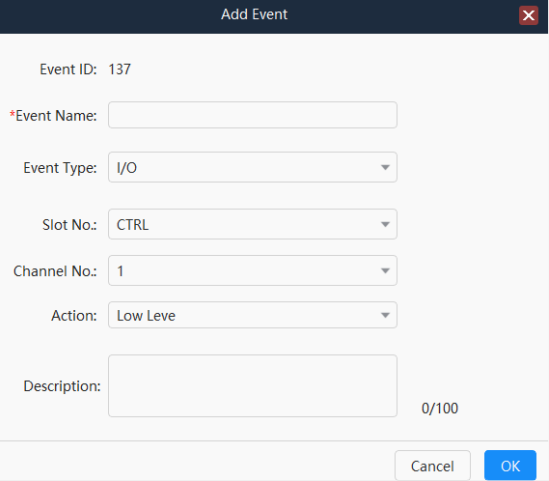
- reate events for serial ports, I/O, IR, relays, Ethernet, CAN, and delays. Each event defines a specific action such as sending a command or triggering a relay.
- Set conditional triggers to execute events when specific signals are received (e.g., a serial command or I/O input).
- Set scheduled triggers to execute events daily, weekly, or once at a specified time.
- Use timeline to sequence multiple tasks automatically within a set duration.
Remote Management
- Run diagnostics from BCTools to test the device and export results for technical support.
- Update firmware for single or multiple devices remotely.
- Export and import project files for backup or deployment across units.
5.Best Applications for Novastar Vunit 3000 LED Video Processor
According to the official specifications, the Vunit 3000 control processor is designed for intelligent video conferences and multimedia conferences in demanding environments. Its combination of programmable control and video matrix switching makes it suitable for the following applications:
Exhibition Centers
Manage large-scale displays with seamless signal routing across 4 HDMI inputs and 3 outputs. The built-in video matrix simplifies switching for interactive exhibits and digital signage.
Press Conference Rooms
Handle multiple video sources and displays simultaneously. The independent audio output allows separate audio routing, while programmable triggers can automate lighting and screen controls for smooth presentations.
Monitoring and Command Centers
Provide real-time data visualization and video monitoring. The industrial-grade CPU and fault-tolerant design ensure 24/7 reliability, while COM ports with Modbus support integrate with sensors and control systems.
Firefighting and Emergency Centers
The high anti-interference communication circuits and stable performance make it suitable for critical environments where system failure is not an option. I/O inputs can connect to alarm sensors, and scheduled triggers can automate routine equipment checks.
6.Novastar Vunit 3000 vs Traditional LED Video Processor
| Feature | Vunit 3000 LED video processor | Traditional LED Video Processor |
| Processing Power | 32-bit ARM Cortex | Typically lower-end CPUs |
| Connectivity Options | Multiple COM, I/O, IR, HDMI | Limited to basic HDMI/VGA |
| Automation Capabilities | Advanced event scheduling and triggers | Manual operation only |
| Expandability | Modular card design | Fixed configuration |
| Integration Ease | Compatible with Novastar ecosystem | Standalone functionality |
7.FAQs
How do I reset the Vunit 3000 control processor to factory settings?
You can reset the device via the front panel menu. Go to Advanced Settings > Factory Reset. Two options are available: Partial Reset keeps user data such as communication settings, EDID files, project files, and events; Reset All restores all parameters to factory defaults.
Can I update the Novastar processor firmware without using a USB drive?
Yes. In addition to updating via a USB drive inserted into the front panel or the main control card, you can also update the Novastar processor remotely using the BCTools software. Under the Device Configuration tab, select the device and click the firmware update icon to upload the update package.
What operating systems can I use to control the Vunit 3000 control processor?
The control processor supports flexible control through wireless or host network communication platforms, including iOS, Android, HarmonyOS, and Windows. You can control the device via custom UI designs created in BCTools.
How do I lock the front panel buttons to prevent accidental operation?
Press and hold both the knob and the ESC button simultaneously for 3 seconds or longer. The same action unlocks the buttons.
What are the operating temperature and humidity limits for the Vunit 3000 LED video processor?
This LED video processor operates reliably in temperatures from 0℃ to 45℃ and humidity from 0% RH to 80% RH (non-condensing). For storage, it can withstand temperatures from -10℃ to +60℃ and humidity up to 95% RH (non-condensing).