

An LED screen for auditorium use should support the room’s presentation workflow, not just display a sharp demonstration video. Specify how lectern computers, playback, live cameras, and captions reach the wall, who switches them, and what remains readable from the last row. Approve the complete signal chain with the school’s own teaching and performance material.
This guide is for a school procurement lead replacing a main auditorium screen during the planning stage. It focuses on everyday lectures, assemblies, visiting speakers, and live performances. The objective is a system that school staff can operate reliably after the installer leaves, with clear responsibilities across the lectern, control room, and display.
The right LED screen for auditorium projects depends on both content and operating practice. A wide canvas can accommodate several sources, but splitting it into small windows may make every source harder to read. Decide which information has priority before choosing dimensions, pixel pitch, switching equipment, or a control interface.
1. Define the programs your LED screen for auditorium use must support
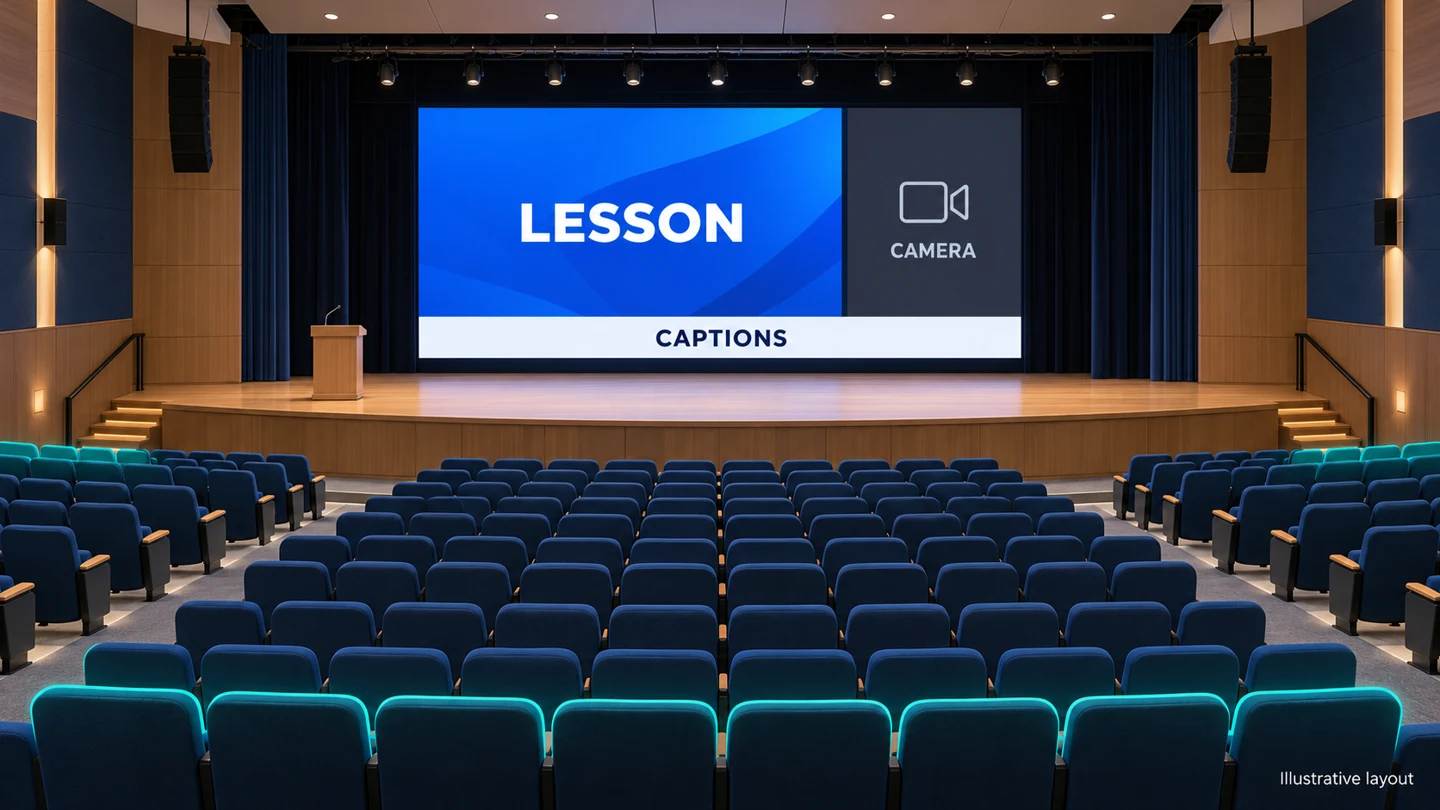
Begin with three or four real events rather than a long equipment list. For a lecture, the teacher may control slides while a technician manages audio. An assembly may alternate prerecorded clips with a live speaker. A performance may need scenic content, live camera coverage, or a dark screen between cues. Each program creates a different operating sequence.
Write down the essential audience task for each event. Reading a diagram label requires a different layout from recognizing a performer in a close-up. If a classroom spreadsheet is part of the brief, test its important cells rather than assuming a full desktop will be useful from every seat. The screen cannot make poorly prepared material readable merely by adding pixels.
Record the normal operator as well as the expert operator. A system that works only when the commissioning engineer is present does not meet the needs of a school with rotating staff. Identify which actions a presenter can perform, which require the control room, and which settings remain restricted to trained technical personnel.
For the LED screen for auditorium brief, distinguish essential functions from occasional requests. A guest’s unusual connector or an ambitious production layout may need a separately quoted adapter or hired operator. Document these exceptions so bidders price the same everyday system instead of making incompatible assumptions about what “multi-purpose” includes.
01. Preserve the distinction between room and broadcast outputs
The audience display, presenter confidence monitor, recording, and livestream may need different pictures. A room camera image can be helpful to distant seats, while a presenter monitor needs the next cue. Write separate output requirements. Do not assume that whatever appears on the LED wall is automatically the correct feed for every destination.
Include event ownership in the brief: who supplies media, checks captions, approves a layout, and authorizes the show to begin. Assign one person to resolve conflicting requests during rehearsal. Without that responsibility, the integrator can deliver functioning equipment while the school still lacks a workable way to prepare events.
2. Assign inputs and switching responsibility
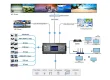
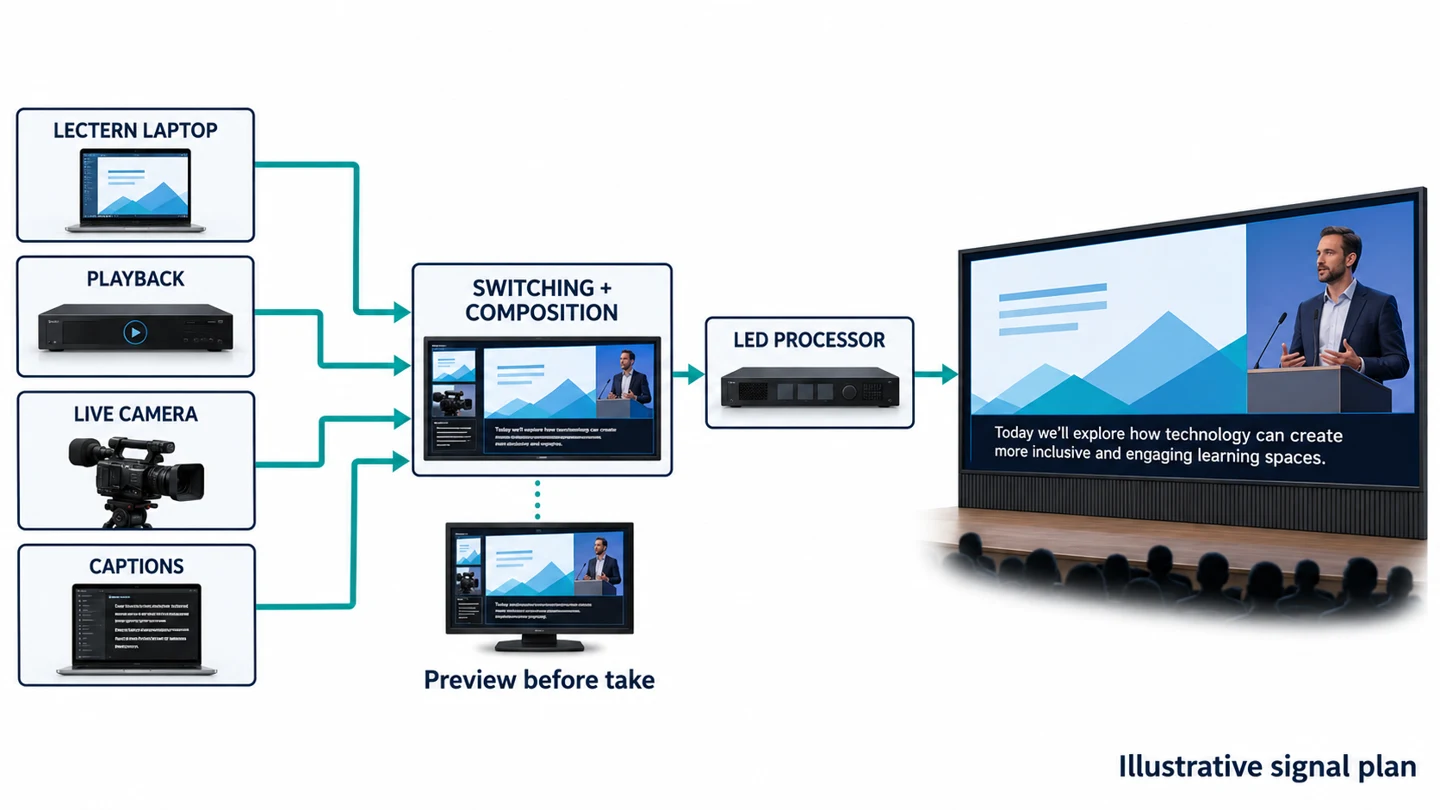
An LED screen for auditorium installations needs an input schedule that extends beyond connector names. Record source location, expected video format, audio routing, cable route, adapters, and the person responsible for testing. A connector that fits physically does not prove that the entire path accepts the source’s resolution, frame rate, or protected playback behavior.
Keep switching and LED processing separate in the written scope, even when one device performs both roles. Switching chooses the source or composition. The LED processor maps the chosen image to the wall’s physical pixels. The proposal should identify which device handles scaling, picture-in-picture, caption composition, and saved presets, with any limitations stated explicitly.
| Boundary | School supplies | Integrator confirms | Demonstration evidence |
|---|---|---|---|
| Lectern to control room | Representative staff laptop and presentation file | Input format, approved adapter, cable path, source label | Connect, present, disconnect, and reconnect successfully |
| Playback to switching | Permitted sample video with its audio and captions | Player format, sound route, caption behavior, protected-content limitations | Complete playback through the intended equipment chain |
| Camera to switching | Required shot positions and event use | Camera output, conversion, timing, monitoring | Speaker movement and speech shown together |
| Caption source to composition | Caption service or prepared caption workflow | Input method, layout, fallback, readable safe area | Long lines, punctuation, and source changes remain usable |
| Processor to display | Approved audience layouts and operating programs | Native canvas, mapping, receiving configuration, backup files | Every region appears in the correct position without cropping |
Test the actual cable path, not a short temporary lead beside the screen. Long runs, intermediate wall plates, extenders, converters, and control-room equipment all belong in the acceptance chain. For any fiber or network transport, identify who provides the infrastructure and who supports it. Keep campus IT involved when its networks or managed devices are required.
Provide a preview method before an operator takes a new source to the audience. The operator should be able to confirm the correct file, framing, and caption state without exposing a desktop or preparation window. Define a neutral holding picture for source changes and an immediate way to remove an unintended image.
For each LED screen for auditorium proposal, request a simple source-to-destination drawing and a written list of unsupported combinations. If two independent layouts cannot run at once, make that visible before purchase. A clear limitation is easier to plan around than a general promise that the system supports every event.
3. Plan slides, captions, and camera layouts
Start with one full-size presentation layout and one mixed layout. In the mixed version, reserve enough space for the smallest required text, then allocate the remaining area to camera video. Putting a tiny slide beside a large speaker image may look balanced in the control room while making the slide useless to the audience.
Specify the wall’s native pixel canvas and the dimensions of each content region. The school’s media team needs export templates that match those regions. Standard widescreen files can be scaled or letterboxed, but cropping must be deliberate. Test edge labels, page numbers, and logos with the actual processor preset so important information does not disappear.
The LED screen for auditorium layout should reserve caption space before slide templates are approved. Captions should not cover the lecturer’s diagram, a performer’s face, or essential slide text. Use sufficient contrast and a consistent background treatment. Test long names, punctuation, line changes, and the longest realistic caption rather than a single short demonstration sentence.
01. Treat captions as content with an owner
A display does not automatically generate accurate captions. Identify whether the source is a prepared video track, presentation application, remote service, or on-site caption operator. Confirm who checks names and specialist terms. Automatic output needs review appropriate to the event; a readable caption band cannot correct a wrong word or missing sentence.
W3C’s caption guidance includes relevant non-speech information and speaker identification where needed to understand the content. For this procurement brief, use that distinction to prepare meaningful test material rather than treating captions as a transcript of spoken words alone. The school’s accessibility lead should define the event requirements and approve the proposed workflow.
Check whether prerecorded captions remain visible through the chosen playback path. A selectable caption track in a laptop player may not be present in a different source output or composition. Test both the room display and any separately specified recording or stream. Keep these checks explicit when approving the LED screen for auditorium system.
Do not force every event into the same layout. A detailed science diagram may need the entire wall while the live camera is temporarily removed. A performance may prioritize the camera with a caption band beneath it. Save named presets that describe the audience task, and give operators a short rule for choosing between them.
4. Prepare a rear-seat acceptance pack
A useful acceptance pack contains school-owned material that tests the hardest normal viewing task. Include the smallest approved slide text, a labeled diagram, a table, a captioned clip, and live camera speech. Use the final templates and intended lighting. A bright scenic video alone reveals little about whether the audience can read a lesson.
Mark representative seats on a room plan: nearest, farthest, side, balcony if present, and any accessible seating locations with distinct sightlines. Ask reviewers to identify specific information from each position. Record the answer and the layout used. “Looks good” is less useful than a repeatable reading task with an agreed outcome.
AVIXA’s display-size approach relates active image size, content detail, and viewing positions. Apply that principle when reviewing an LED screen for auditorium use: the readable content region matters, not just the overall cabinet dimensions. If a slide occupies only part of a large wall, evaluate that smaller region from the actual seats.
| Test asset | Required audience action | Potential failure | Record before approval |
|---|---|---|---|
| Real diagram with labels | Read named labels from agreed seats | Small active region, weak contrast, obstructed sightline | Seat, label size, layout, lighting condition |
| Edge-marked slide | See every border marker and corner label | Cropping, overscan, wrong scaling or aspect ratio | Source format and processor preset |
| Captioned speech clip | Follow words and speaker changes | Missing track, covered text, unreadable line length | Player, caption mode, composition |
| Live speaker and camera | Follow speech while watching the projected image | Distracting delay, framing errors, audio mismatch | Camera path and agreed assessment method |
| Dark and light presentation pages | Read without uncomfortable glare or lost detail | Unsuitable operating brightness, reflections, poor low-level image | Room lighting and saved brightness setting |
Separate a content failure from a hardware failure. If text remains too small in an otherwise clean image, revise the template or active image size. If a source loses edge detail only through one input, investigate that signal path. This distinction keeps the school from purchasing finer pixel pitch as an expensive response to a layout problem.
Do not invent a universal pass threshold for delay or readability. Agree the method with the school’s AV team and the intended users before the demonstration. A measured latency requirement, if needed, must state the start and end points and the measurement procedure. Subjective viewing comments can supplement that record but should not replace a contracted measurement.
Keep a copy of the accepted test assets and settings. When a later complaint appears, staff can replay the same pack and distinguish a system change from a newly created slide. This makes the LED screen for auditorium acceptance process useful throughout operation rather than a one-day ceremony.
5. Coordinate the display with the room
The signal plan must fit the physical installation. Confirm screen position, viewing obstruction, loudspeaker placement, stage lighting, service access, cable routes, and control-room visibility together. A clear electronic layout cannot compensate for scenery covering the lower caption band or a lectern blocking important information for side seats.
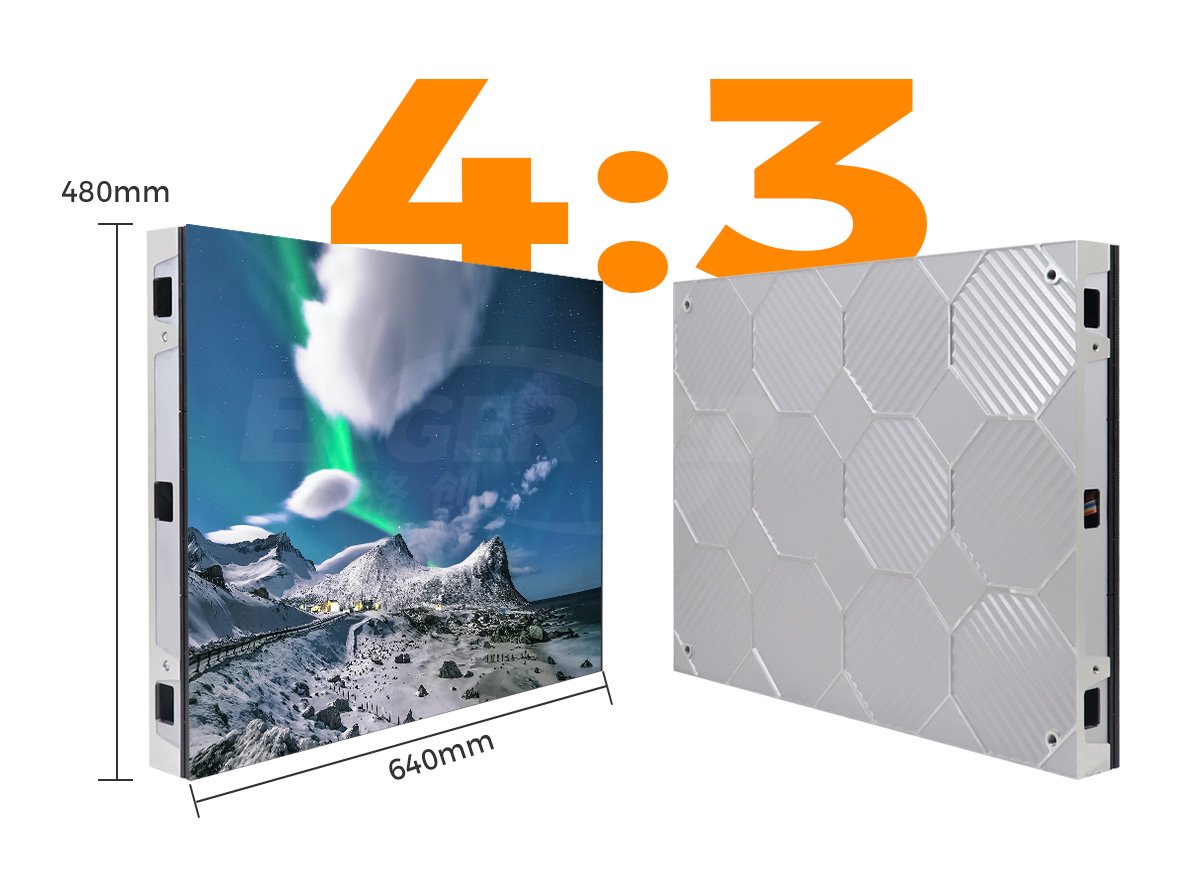
For fixed interiors, compare cabinet service arrangements early. The EA640F2 indoor LED cabinet, for example, uses a 640 by 480 mm format and front-service components. Those are product characteristics, not proof that a particular auditorium design is suitable. The selected configuration still needs a room-specific review of access, mounting, ventilation, and image performance.
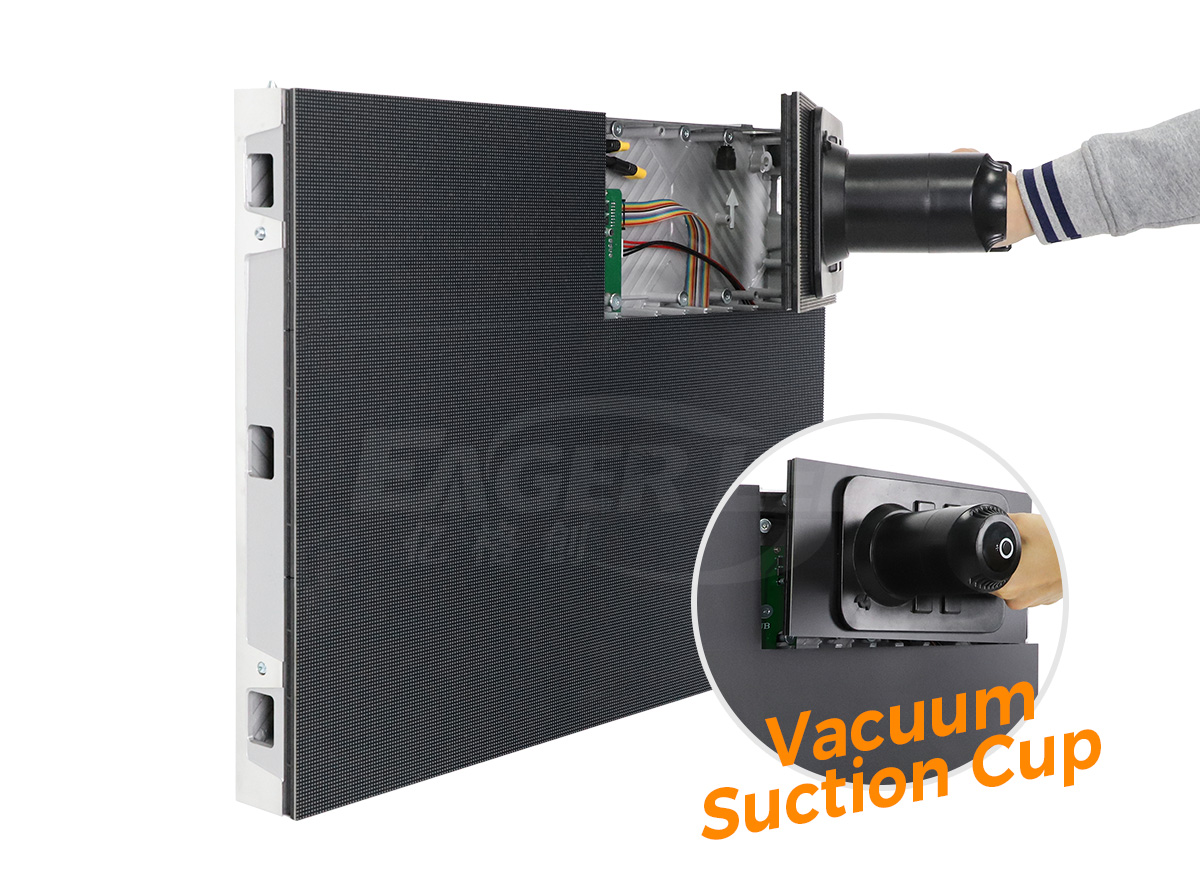
An LED screen for auditorium projects also needs safe access after the stage is furnished. Ask how a technician reaches the upper modules, where removed parts can be handled, and whether maintenance requires moving staging or seating. Have qualified professionals assess structure, attachment, power distribution, and applicable installation requirements for the actual room.
Keep controller and source equipment accessible to authorized staff. Label the cabinet network and power routes consistently with the drawings. Provide an approved startup and shutdown sequence for the LED screen for auditorium events. General users should operate named event presets without altering cabinet mapping or service settings that could affect the whole wall.
Use the venue viewing-angle acceptance guide for a more detailed side-seat review. The auditorium brief should add its own source switching and caption requirements to that image-quality evidence. These checks answer different questions and should appear as separate acceptance items.
6. Rehearse complete events and hand over the system
Rehearse the sequence, not just the individual inputs. Start with the room idle, connect a presenter, switch to a captioned clip, return to slides, introduce the camera, and finish with a holding picture. Use the same staff roles expected during a real event. Note every step that requires an undocumented workaround.
The rehearsal for an LED screen for auditorium use should include an ordinary disruption. A guest laptop can be disconnected during a non-public test, or a prepared source can be made unavailable by the operator using an approved procedure. Demonstrate how staff restore the intended picture without changing the wall’s underlying configuration.
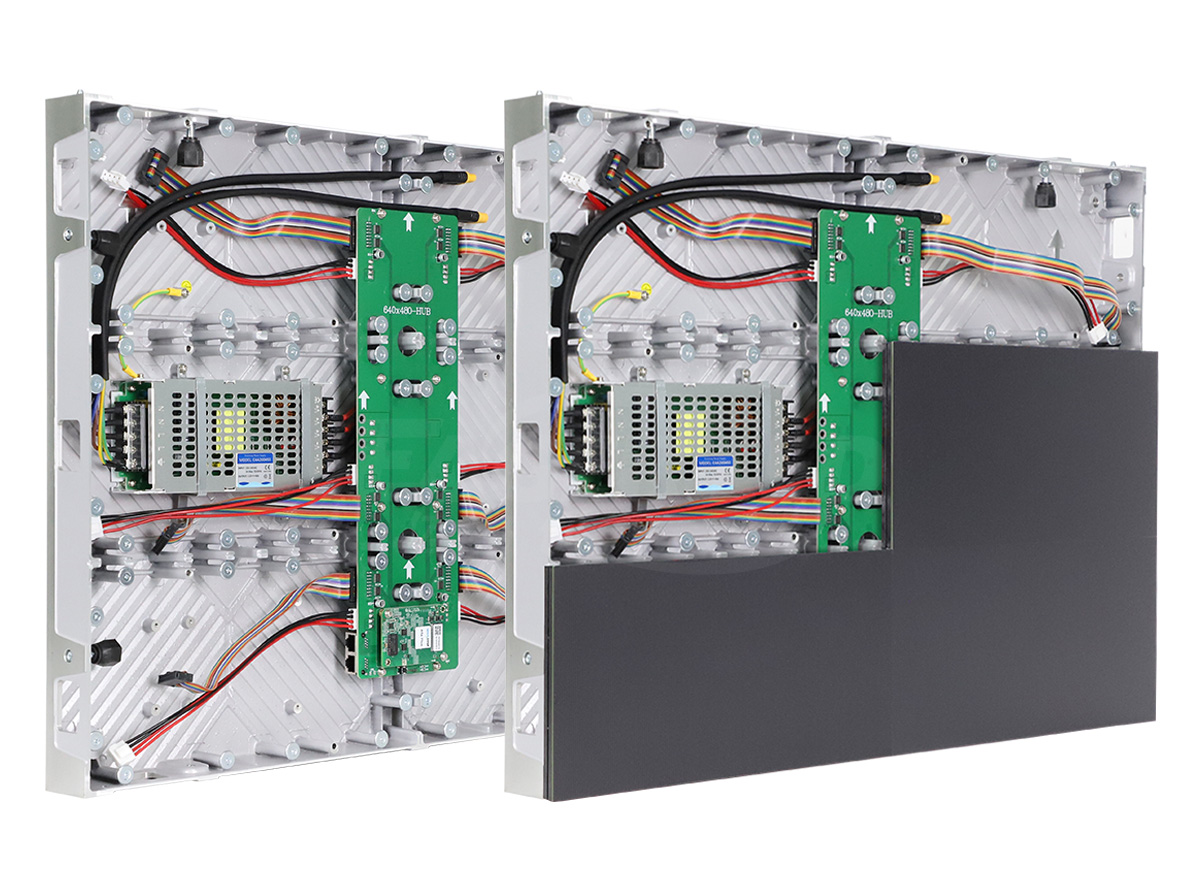
Provide a handover folder containing the accepted layouts, source schedule, cable labels, processor configuration, software versions, maintenance access procedure, and support contacts. Store an approved backup where the school’s authorized technical team can retrieve it. Include a short operator sheet for daily use and a separate service document for technicians.
Schedule a staff-led demonstration before acceptance: the installer observes while the school performs the agreed event sequence. Record outstanding issues by severity, responsible party, and retest method. An unresolved caption path or unreadable required slide is not closed merely because the panels illuminate correctly.
Finally, define the routine checks before each event and the process for approving later changes. The site-specific maintenance planning guide helps organize service records. Keep those records alongside the auditorium’s accepted content and presets so future repairs or upgrades can be tested against a known baseline.
Frequently asked questions
Can the screen be used for examinations or confidential meetings?
Yes, but the school should define source access, room access, and recording behavior for those events. Confirm that a restricted session is not unintentionally routed to a stream or recorder. Test the intended private workflow with harmless sample material before using confidential content.
Should visiting presenters install software before arriving?
Only if the agreed connection method requires it. Publish a short visitor guide with supported connections, file requirements, and a contact for exceptions. Provide an approved fallback where practical, and avoid making an untested guest device the only available source.
Can bilingual captions use the same caption band?
They can, but two languages change line length and occupied image area. Prepare realistic bilingual samples with the intended fonts and reading direction. Obtain review from people who read both languages, and reassess the space available for the presentation rather than shrinking everything automatically.
Does the LED wall replace hearing assistance equipment?
No. Visible captions and hearing assistance serve different needs. Coordinate the display with the school’s accessibility and audio teams so the overall event provision addresses the intended audience. Treat compatibility between systems as a separate planning task.
What if the school changes presentation software later?
Keep the original acceptance pack and test the new software through the same input path. Check fonts, playback, captions, source changes, and saved layouts. Document any required preset changes, and retain a working fallback until the new workflow is accepted.
Build your auditorium brief
Before requesting an LED screen for auditorium quotation, assemble a room plan, seating review positions, sample presentations, caption workflow, source list, and typical event sequence. State who operates each part and which outputs are required. These inputs let suppliers identify missing interfaces and quote the same usable system.
Send EagerLED your auditorium requirements for a configuration discussion. Ask for a proposed canvas, cabinet arrangement, service approach, processing scope, and demonstration plan. Select the LED screen for auditorium application only after the complete workflow has shown that the school’s actual audience can follow its actual content.